A Simple Trick to Use WhatsApp Business on Multiple Devices
Is it becoming difficult to manage customer queries on WhatsApp with just one or two devices? If you want to run WhatsApp Business on multiple devices, you are in the right place.
46% of customers expect a response within the first hour. Meeting this demand with the same level of attention is simply not feasible for one person alone.
In this guide, we will explain how to use WhatsApp Business on multiple devices using both the standard WhatsApp Business App and the WhatsApp Business API.

What We'll Cover
1. Is multi-device access possible on WhatsApp Business?
2. Setting Up WhatsApp Business on Multiple Computers
3. How to use multiple devices with the WhatsApp Business API.
4. Managing customer queries efficiently with Yugme Boom
Let’s dive in.
1. Is Multi-Device Access Possible on WhatsApp Business?Yes, you can operate WhatsApp Business across multiple devices using one of two methods:
- WhatsApp Business App
- WhatsApp Business API
Historically, the WhatsApp Business App restricted usage to a single smartphone and one PC. However, following the 2023 update, you can now link up to five devices simultaneously. This includes one primary mobile device plus four additional devices (such as PCs, tablets, or secondary phones). This update enables multiple team members to view and respond to messages from a single business account.
Method 2: WhatsApp Business APILaunched in 2018, the WhatsApp Business API is designed specifically for medium to large enterprises. It removes the limitations found in the standard app, such as the 256-contact broadcast cap. With the API, you can:
Send messages to unlimited users daily (provided they have opted in).
Provide live chat support across unlimited devices, including mobiles, tablets, and PCs.
Engage customers effectively within the 24-hour service window.
Ready to implement the WhatsApp Business API? Sign up on Yugme Boom to get started for free.
Below, we break down the key differences between the standard WhatsApp Business app and the Yugme Boom platform powered by the Business API.
| Feature | WhatsApp Business API (For Growing Businesses) | WhatsApp Business App (For Small Businesses) |
|---|---|---|
Broadcasting Limit | Up to 100,000 users per day | Limited to 256 contacts |
Multi-User Access | Supports unlimited team members | Single device access only |
Chatbot Integration | Available | Not supported |
Automated Messaging | Supported | Not available |
Broadcast Reach | Messages can be sent to all opted-in users | Only users who saved your number receive messages |
Coding Requirement | Not required when using platforms like Yugme Boom | No coding needed (built-in WhatsApp app) |
Verified Green Tick | Possible after verification | Not available |
Clickable Messages | Supported | Not supported |
Let's explore how to enable multi-device access for multiple users via both the WhatsApp Business App and the Business API.
Setting Up Multiple Devices with the WhatsApp Business AppThe standard WhatsApp Business App is designed for individuals and small businesses with moderate message volumes. It allows you to link one primary mobile device plus four additional devices, supporting a total of five active devices, including:
- PCs
- Smartphones or Tablets
Linking these devices is completely free. Here is how to configure WhatsApp Business on multiple PCs.
Setting Up WhatsApp Business on Multiple Computers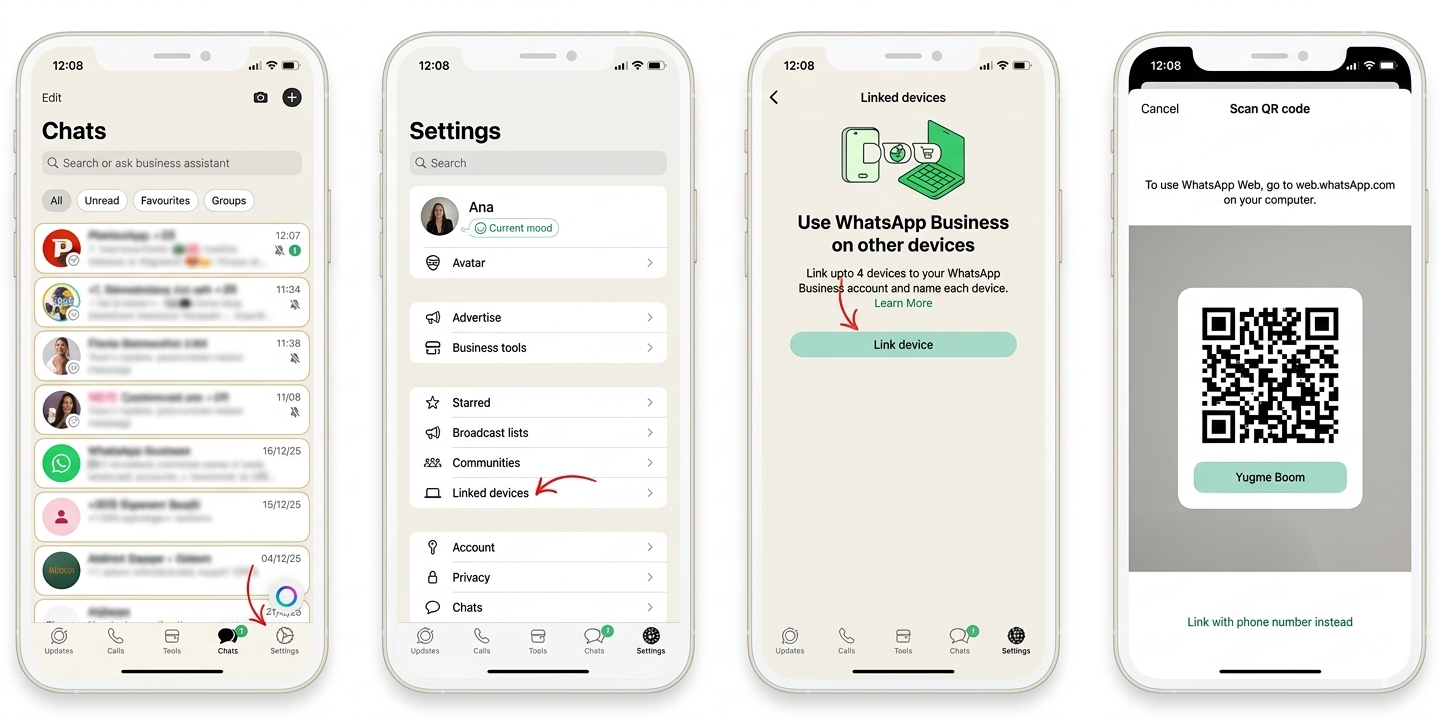
Follow these steps to access WhatsApp Business on multiple PCs or laptops:
- On your computer, navigate to web.whatsapp.com.
- Open the app on your phone, tap the three-dot menu (Android) or Settings icon (iPhone), and select "Linked Devices."
- Tap "Link a device" and scan the QR code displayed on your computer screen.
Logging into WhatsApp Business across multiple phones is a straightforward process.
Just follow these steps:
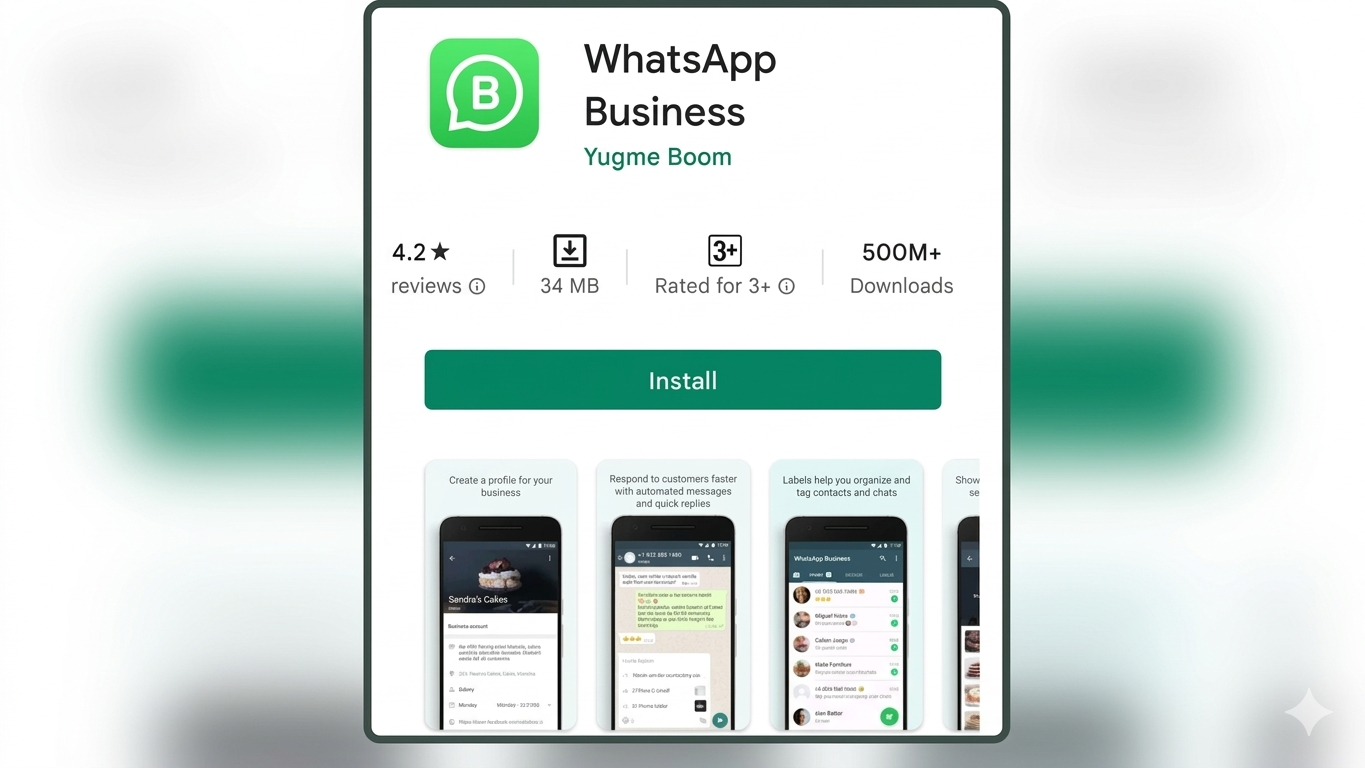
- First, download the WhatsApp Business App on your mobile device if it is not already installed.
- Open any browser on your mobile phone and navigate to web.whatsapp.com.
- Enable the "Desktop site mode" in your browser settings to view the desktop version.
- Scan the QR code to successfully log in to the WhatsApp Business App on your second phone.
That's it! By logging in on two phones, your agents can now access the same WhatsApp Business account on two mobile devices and three PCs.
Managing Linked DevicesOnce your devices are linked, managing them is essential for security. You can view all connected devices by navigating to "Linked Devices" in your app settings. From here, you can unlink any device that is no longer in use. Regularly reviewing this list ensures that only authorized users have access to your business account.
Limitations of the WhatsApp Business AppHowever, the WhatsApp Business App has several drawbacks for mid-to-large-sized businesses:
1. Broadcast Cap: You are limited to messaging 256 users at a time. 2. No Analytics: There is no way to track performance metrics. 3. No Agent Tracking: You cannot monitor individual agent performance. 4. No Automation: You cannot integrate a WhatsApp Chatbot to automate support.To overcome these limitations, you should use the WhatsApp Business API for multiple users.
3. How to use multiple devices with the WhatsApp Business API.The WhatsApp Business API is designed for enterprise-level businesses to manage customer support, drive conversions, and scale growth on WhatsApp.
With the Business API, businesses can:
- Send WhatsApp Broadcasts to unlimited users (provided they have opted in).
- Deploy smart AI chatbots to capture leads, recommend products, and automate tasks.
- Offer Live Chat support on unlimited devices using a single phone number, allowing multiple agents to respond simultaneously.
- Manage conversations efficiently with a built-in WhatsApp CRM.
- Assign chats to specific agents to ensure clear ownership and smoother collaboration.
- Run retargeting campaigns to re-engage users and optimize budget efficiency.
The WhatsApp Business API is ideal for startups and medium-to-large businesses handling high volumes of daily messages.
Get Started with Free WhatsApp Business APIOnce you connect to a WhatsApp Inbox platform like Yugme Boom, you can enable multi-user access by adding team members and assigning specific roles.
Here is how to add and assign roles to multiple users:
(1) Sign Up with Yugme Boom: Create a FREE Demo account (active for 14 days). Approval for your WhatsApp Business API account typically takes between 10 minutes and 6 hours. (2) Add Users: Once the setup is complete and approved by WhatsApp, go to settings in the Yugme Boom App to add your users.Assign specific roles to your team members. Once configured, your support agents and managers can respond to customer queries from different devices using a single business number. Agents and Managers receive unique Login IDs, allowing them to access the Yugme Boom platform simultaneously on mobiles, PCs, or tablets.
4. Managing customer queries efficiently with Yugme BoomWith your team in place, let’s discuss how agents handle user interactions. The AiSensy App organizes all conversations efficiently into three distinct columns: Requesting, Active, and Intervened Chats.
Active ChatsWhen a user messages you on WhatsApp, the conversation automatically filters into the Active Chat column. These chats are managed by the WhatsApp Chatbot within the AiSensy App and do not require immediate human intervention.
For instance, if you have an incoming active chat handled by the Chatbot, it will look like this:
Chats in this category indicate that they are awaiting human agent intervention to be addressed. These pending requests are also prominently displayed on the top bar to ensure agents notice them immediately.
Active Agent Chats — Once a pending chat request receives attention from an agent, it moves from the Pending Chats section to Active Agent Chats.
At this stage, agents can respond directly to the user’s inquiry. After resolving the issue, the agent simply clicks the ‘Resolve’ button at the top, which hands the conversation back to the chatbot and moves the chat back to the Active Chats column. Like pending chats, Active Agent Chats also remain visible on the top bar for easy access.
Live Chat Interface — When an agent selects ‘Take Over Chat,’ the live chat textbox is activated, enabling a direct one-on-one conversation with the user. Agents can respond with any type of message, including text, images, videos, and files to effectively address the user’s query.
This is how you manage WhatsApp Business interactions for multiple users seamlessly using Yugme Boom.
Common Questions
"Common Questions" is a section designed to address frequently asked inquiries and provide clear, concise answers to help users better understand key topics, features, and best practices related to the subject matter.