WhatsApp Login: Easy Guide to Using WhatsApp Web & Desktop (2026)
Looking to log in to WhatsApp Web or WhatsApp Desktop without any hassle?
You’ve come to the right place.
This comprehensive guide covers WhatsApp login for Android, iPhone, and PC users — whether or not you have your phone handy.
With recent updates, WhatsApp now lets you log in to both WhatsApp and WhatsApp Business App on up to 5 devices simultaneously (1 mobile device plus 4 PCs). Additionally, you can manage multiple accounts within the same app.
In this quick guide, we’ll also explain how to log in using just your phone number and show how businesses can grow with the WhatsApp Business API.
Note: These instructions apply to both the WhatsApp App and WhatsApp Business App.
Table of Contents
1. Logging into WhatsApp Web Using a Phone Number
2. How to Log in to WhatsApp Web with an Android Device
3. How to Access WhatsApp Web Using an iPhone
4. Using WhatsApp Web Without a Smartphone
5. Logging into WhatsApp Desktop on Windows and Mac
6. Helpful Tips and Tricks for WhatsApp Login
7. Introduction to the WhatsApp Business API
In 2025, WhatsApp has made it easier than ever to access your account directly through a web browser. You can now log in to WhatsApp Web using your phone number, similar to how you sign in on your mobile device.
Follow these simple steps to quickly access WhatsApp Web using your phone number:
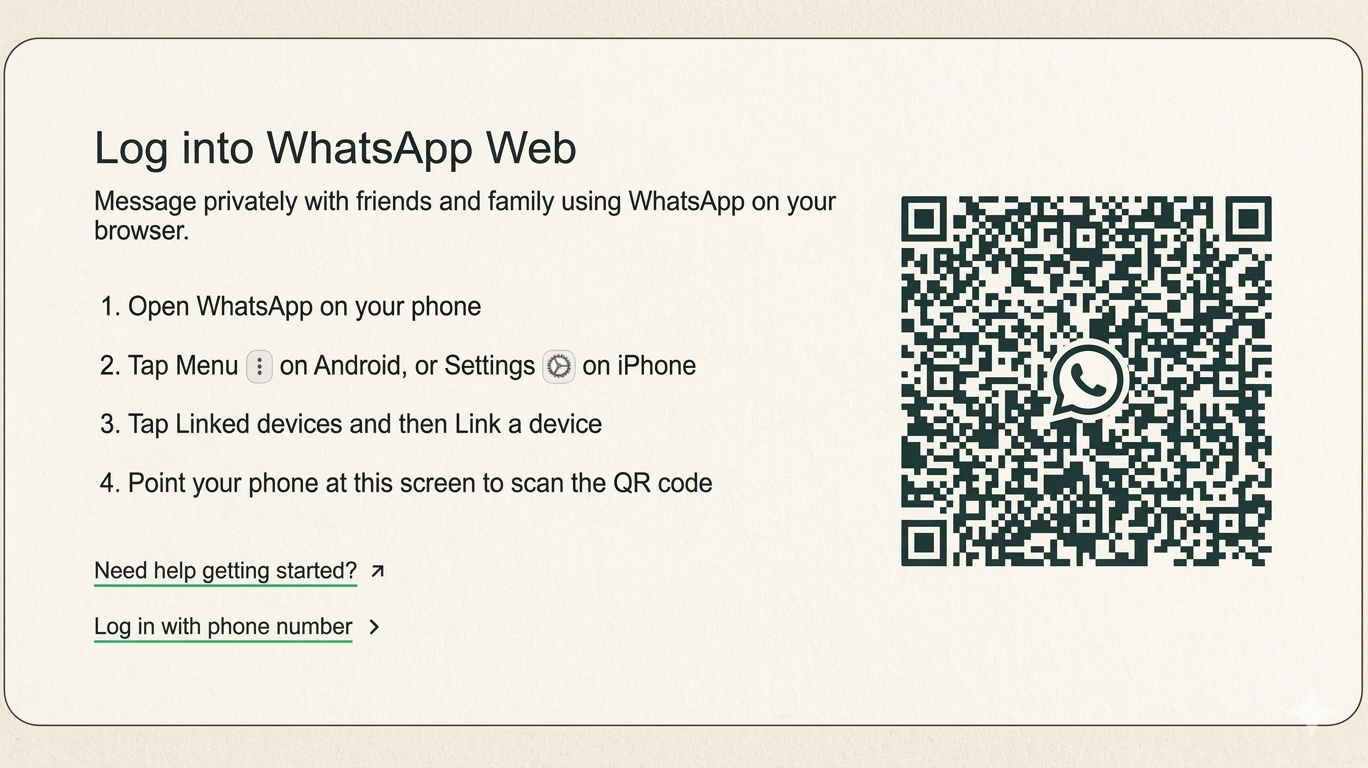
1. Open WhatsApp Web on your computerVisit web.whatsapp.com on your PC and select “Log in with phone number”, as shown in the image below.
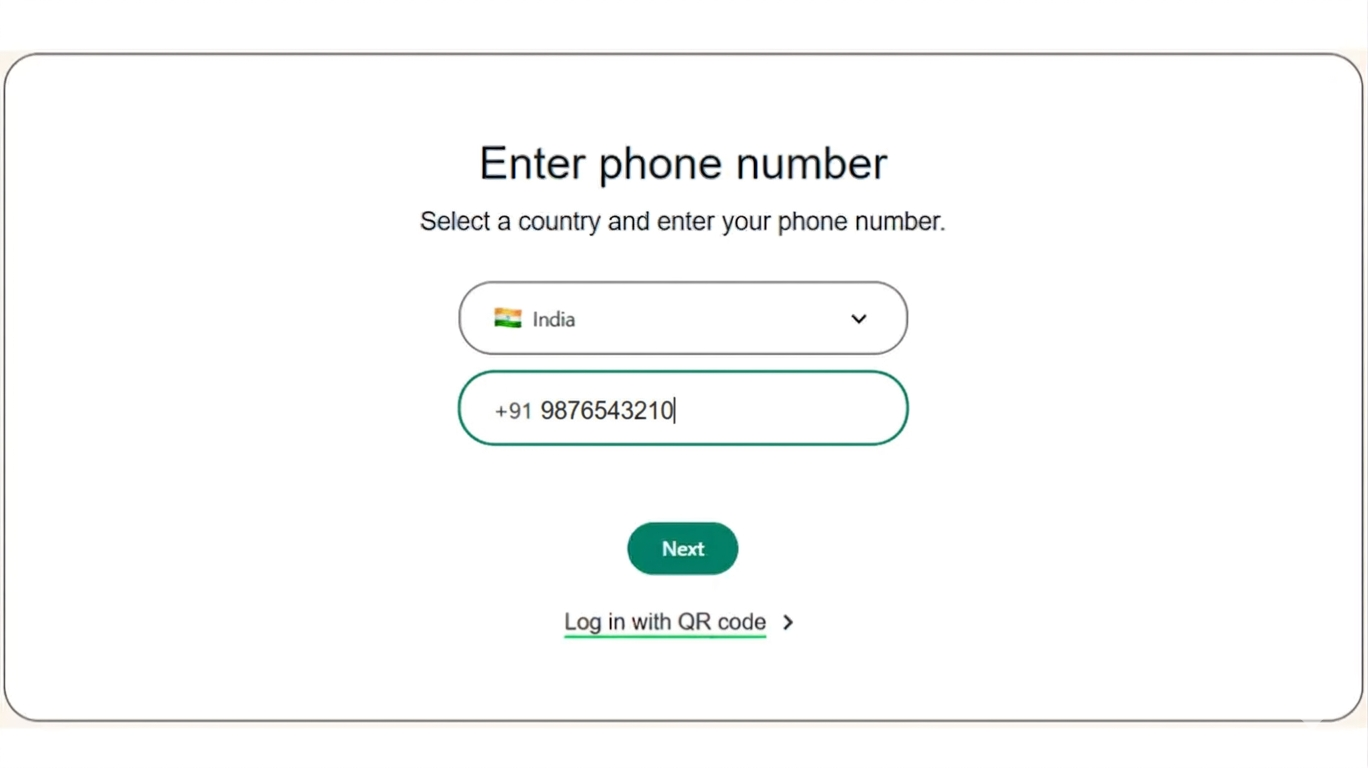
Type your registered WhatsApp phone number in the required field and select Next to continue the login process.
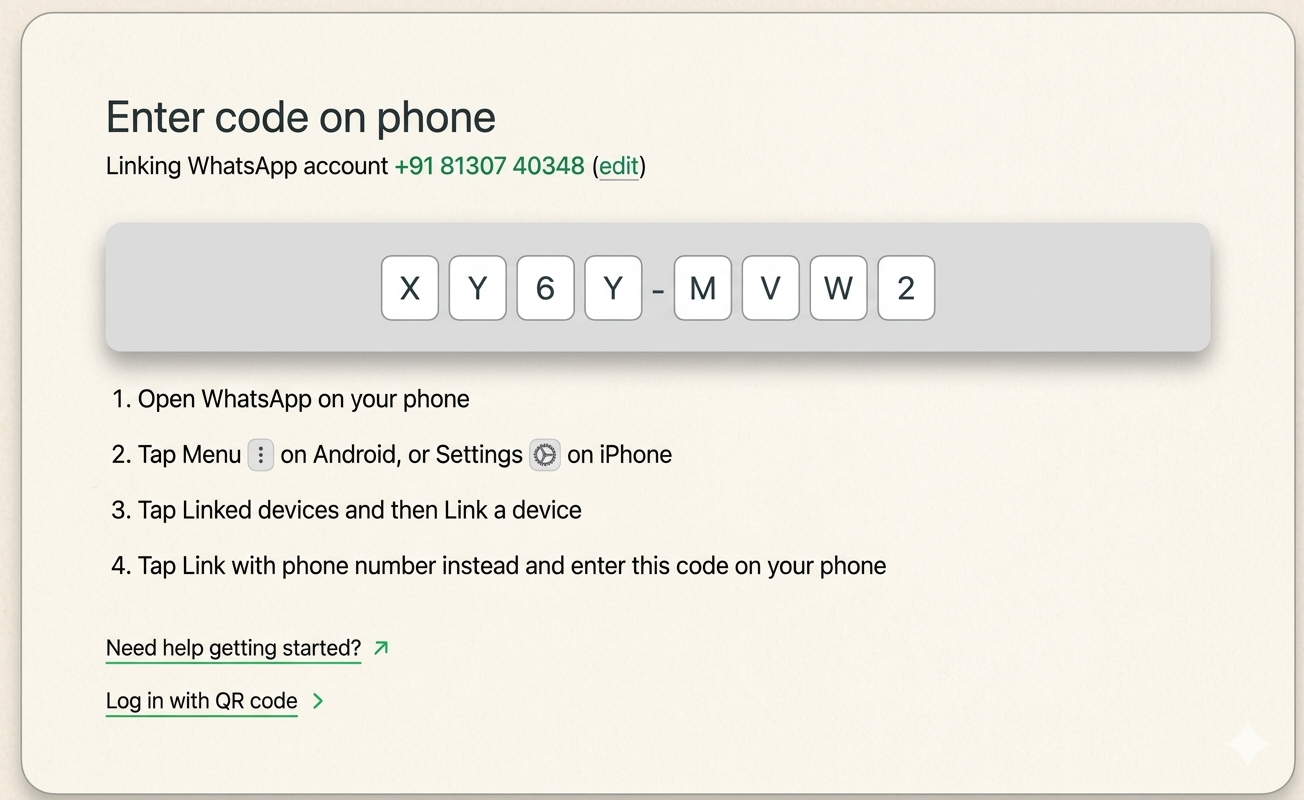
Once you enter the login code shown on your browser into your WhatsApp mobile app, your chats will instantly appear on your web browser.
If you are using an iPhone, the steps to access WhatsApp Web are slightly different from Android devices.
Follow these simple steps to log in to WhatsApp Web from your iPhone:
- Open the WhatsApp or WhatsApp Business app on your iPhone.
- Tap on Settings at the bottom of the screen.
- Select Linked Devices.
- Tap Link a Device to open the QR code scanner.
- On your computer, open WhatsApp Web in your browser.
- A QR code will appear on the screen.
- Use your iPhone to scan the QR code displayed on the web page.
Once the QR code is scanned, your WhatsApp account will be connected to the browser, and you can start using WhatsApp Web instantly.
To access WhatsApp Web on your computer using an Android device, make sure you are already logged in to WhatsApp on your mobile phone. You will need to scan a QR code displayed on the web page to complete the login.
Follow these steps to log in to WhatsApp Web using an Android device:
- Open the WhatsApp or WhatsApp Business app on your Android phone and tap the three dots in the top-right corner.
- Select Linked Devices from the menu.
- Tap Link a Device, which will open the QR code scanner on your phone.
- On your computer, open WhatsApp Web in your browser.
- A QR code will appear on the screen.
- Use your phone to scan the QR code displayed on the web page.
Once the QR code is scanned successfully, your WhatsApp account will be instantly connected to the browser, and your chats will appear on your computer.
With the latest updates to WhatsApp and WhatsApp Business, users can now continue using WhatsApp Web even when their smartphone is not actively connected. Previously, your phone had to stay online at all times for WhatsApp Web to work.
To set this up, follow these steps:
- Open the WhatsApp or WhatsApp Business app on your phone.
- Go to Settings.
- Tap Linked Devices.
- Select Link a Device, which will open the QR code scanner.
- On your computer, open WhatsApp Web in your browser.
- A QR code will appear on the screen.
- Scan the QR code using your phone.
Once the device is linked, you will be able to use WhatsApp Web on your computer even if your mobile phone is turned off or not connected to the internet.
If you prefer using WhatsApp on your computer without keeping a browser open, WhatsApp Desktop is a great option. It is a dedicated application for Windows and Mac that offers better performance, native notifications, and allows you to use WhatsApp even when your browser is closed.
Note: Both WhatsApp Web and WhatsApp Desktop support login through QR code scanning and phone number verification, and they work with WhatsApp’s multi-device feature.
Step 1: Visit whatsapp.com/download or search for “WhatsApp” in the Microsoft Store.After installation, the WhatsApp Desktop app will launch automatically.
When the app opens, you will see a QR code displayed on the screen (in some regions, you may also have the option to log in using your phone number).
Step 5: Link both devicesTo link your phone:
- Open WhatsApp or WhatsApp Business on your mobile device.
- Go to Settings (on iPhone) or tap the three dots in the top-right corner (on Android).
- Select Linked Devices.
- Tap Link a Device.
Once the QR code is scanned, your WhatsApp chats will instantly sync with the desktop application, and you can start using WhatsApp directly from your computer.
If you’re having trouble logging into WhatsApp Web or Desktop, a few quick checks can often resolve the issue. Here are some simple solutions you can try:
- Check your internet connection
- Clear your browser cookies and cache
- Update WhatsApp to the latest version
- Re-link your devices
- Check VPN or firewall settings
If the issue still persists, wait a few minutes and try again, as WhatsApp services may occasionally experience brief outages.
Want to Reach Global Audiences on WhatsApp?For small businesses and individuals, the WhatsApp Business App is a good option for communicating with customers.
Read: How to Set Up a WhatsApp Business Account
However, if you run a larger business and want to connect with customers at scale, the WhatsApp Business App may not be sufficient. It comes with several limitations that can restrict business growth and communication efficiency.
Some of the key limitations include:
- Broadcast limit of 256 users, and messages only reach people who have saved your number in their contacts.
- No built-in analytics to measure campaign performance.
- No way to track agent performance or customer support activities.
- No chatbot integration for automating customer support.
- Limited integration options with third-party software or CRM systems.
- No support for automated notifications.
- Interactive messages with clickable buttons are not available.
- Verification features like the WhatsApp Blue Tick are not accessible.
So, how can businesses overcome these limitations of the WhatsApp Business App?
To address the limitations of the WhatsApp Business App, Meta introduced the WhatsApp Business API in 2018. This solution is designed for medium and large businesses that want to communicate with customers on a much larger scale.
The WhatsApp Business API is a powerful tool for reaching global audiences and managing customer interactions efficiently. However, to use it, businesses typically need to work with an official WhatsApp Business Solution Provider, such as Yugme Boom.
This is because WhatsApp does not provide a direct application or interface for using the API. Instead, platforms like Yugme Boom offer the tools and dashboard required to manage WhatsApp communication effectively.
With Yugme Boom, businesses can:
- Send WhatsApp broadcasts to a large number of opted-in users at once
- Automate notifications for events such as order confirmations, payment reminders, and delivery updates
- Add multiple live chat agents to manage customer support
- Implement AI-powered WhatsApp chatbots to automate responses
- Run Click-to-WhatsApp advertisements to attract new customers
- Apply for the WhatsApp Blue Tick verification for business credibility
And much more.
To get started with the WhatsApp Business API through Yugme Boom, simply sign up on the Yugme Boom platform, create a free account, and begin exploring its features.
Frequently Asked Questions About WhatsApp Login
This section answers common questions about WhatsApp login, including how to use WhatsApp Web and Desktop, device limits, security, and troubleshooting login issues.